Developers
A browser that keeps up with your keyboard
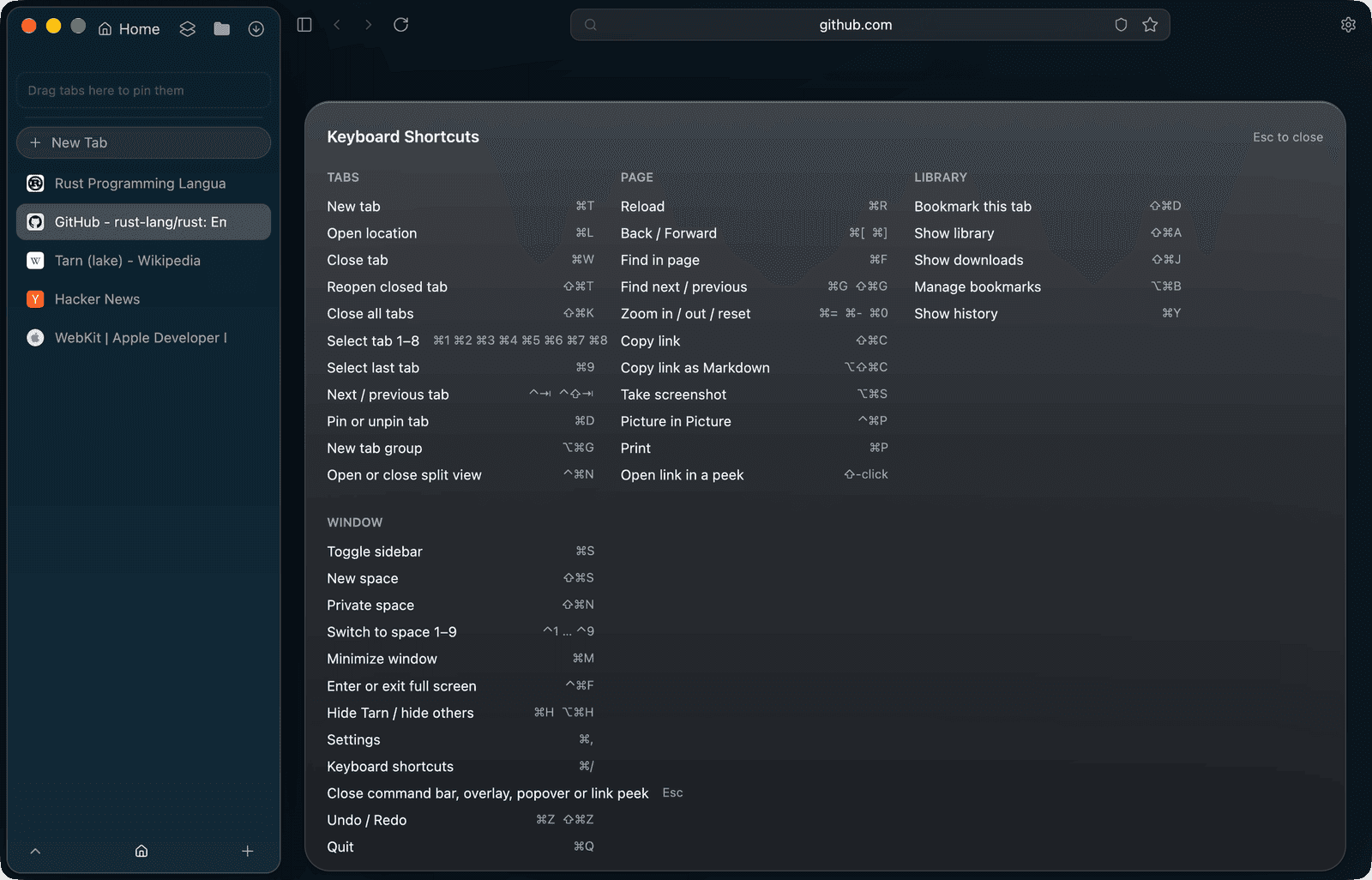
Set Tarn up for development
- Press ⌘/ to see every shortcut, then change the ones you want in Settings › Shortcuts.
- In Settings › Developer, turn on developer tools for Web Inspector, the JSON viewer, responsive sizes, Clear Site Data and the list of local servers.
- Create a developer profile in the same pane, so test sessions never touch your everyday cookies.
- Jump between your spaces with ⌃1 to ⌃9.
- Press ⌃⌘N to read docs beside your page, and ⇧-click a link to peek at it without leaving.
Reaching for the mouse breaks your focus
Nearly every action has a shortcut, and ⌘/ shows them all in a cheat sheet. Most can be changed in Settings › Shortcuts, and the menus, the command bar and the cheat sheet always show the keys you set.
Too many tabs to find the right one
Type into the address field and a page already open in the profile is offered as Switch to Tab first. A leading > lists app actions with their shortcuts, and Find in Tabs searches the text of the space's awake tabs.
- rust-lang/rustSwitch to Tab
- Tarn (lake) - WikipediaSwitch to Tab
- Rust Programming LanguageSwitch to Tab
- Split ViewAction
- Shield: StrictAction
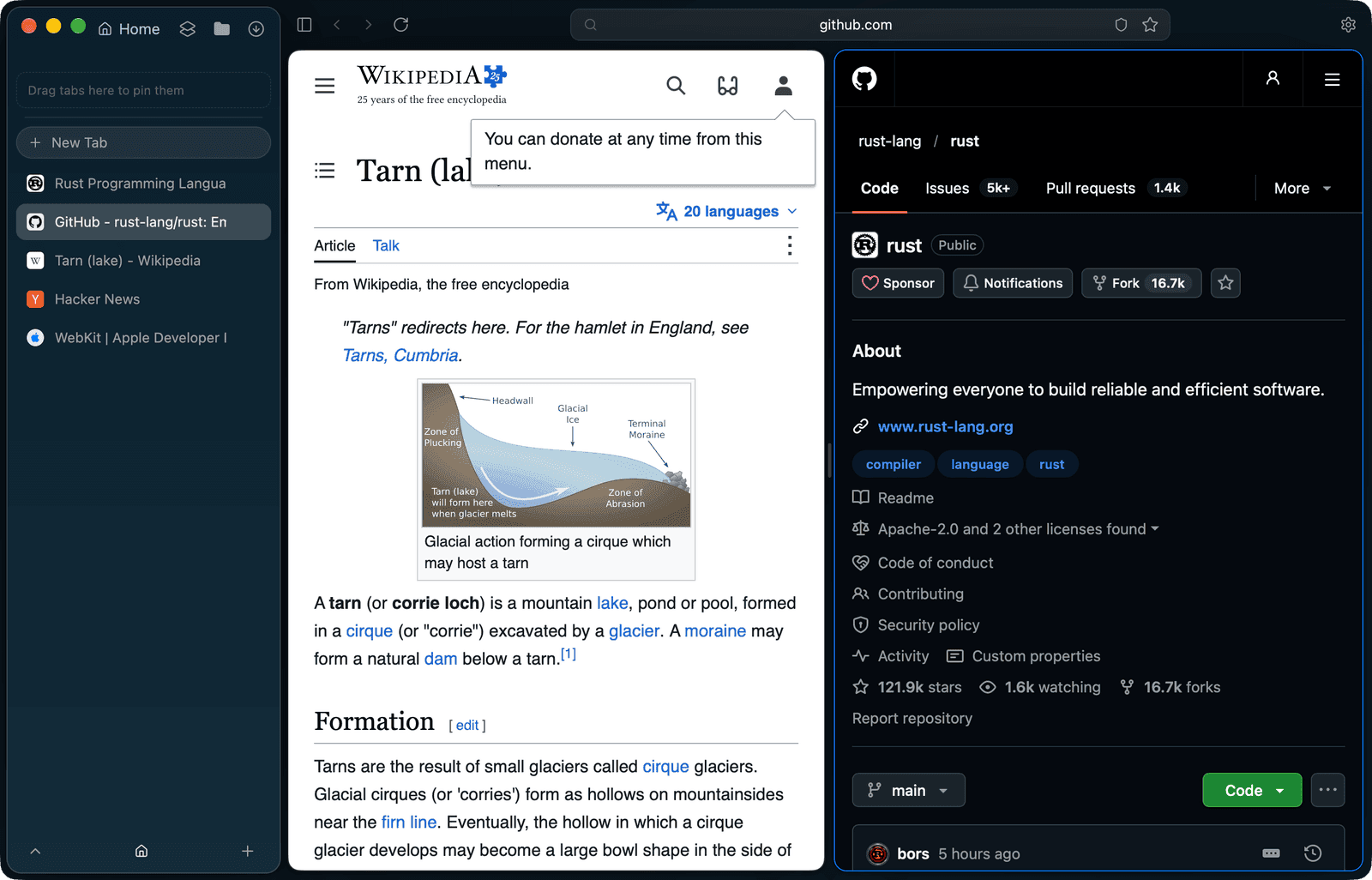
Docs on one side, the page on the other
⌃⌘N opens Split View: the current tab beside the space's last used tab, with a divider you can drag. ⇧-click a link to peek at it in a card over the page; Open in Tab keeps it, Esc closes it.
Test logins mixed up with your own
A developer profile has its own cookies, logins and site data, like every profile. It also clears disk, memory and fetch caches after every load and reloads from origin, so you see what a first visit sees.
Questions
Does Tarn have developer tools?
Yes. With the switch in Settings › Developer on, web views are inspectable with Web Inspector, JSON documents open in a viewer, and the toolbar adds a responsive-size button and Clear Site Data.
What does a developer profile do differently?
It keeps its own cookies and site data like any profile, and clears disk, memory and fetch caches after every load, then reloads from origin.
Can I see my local dev servers?
Yes. With developer tools on, the start page lists open dev ports, and Settings › Developer lists local servers with Open and Refresh.
Can I test a page in Chromium?
Chromium tabs are built in, but they open only in builds that can reach a published, signed update feed, because Chromium's security fixes arrive only through updates.
Can I rebind shortcuts?
Most of them, in Settings › Shortcuts. Tab and space numbers, Esc, Undo and Redo and ⌘Q stay fixed, and a new binding needs ⌘ or ⌃.
Where Tarn falls short
- Pages render in the system WebKit. Chromium tabs open only in builds that can reach a published, signed update feed.
- Switch to Tab offers tabs of the current profile only, not tabs open in another profile.
- A split holds two tabs, and it ends when you switch to another tab.
- The JSON viewer shows at most 2,000 rows and 256 KiB of pretty text.
- The shortcuts shown are the macOS defaults; other clients are in development.
Try Tarn on your Mac
No account to make and nothing sent home. macOS 14 or later; other platforms are in development.