Research and study
Long reading, without losing the thread
Topics bleed into each other
Give each course, paper or question its own space with a name, colour and icon. Save Space as Snapshot keeps the addresses, titles and groups of its tabs, so you can put a topic away and bring it back later.
Comparing two sources
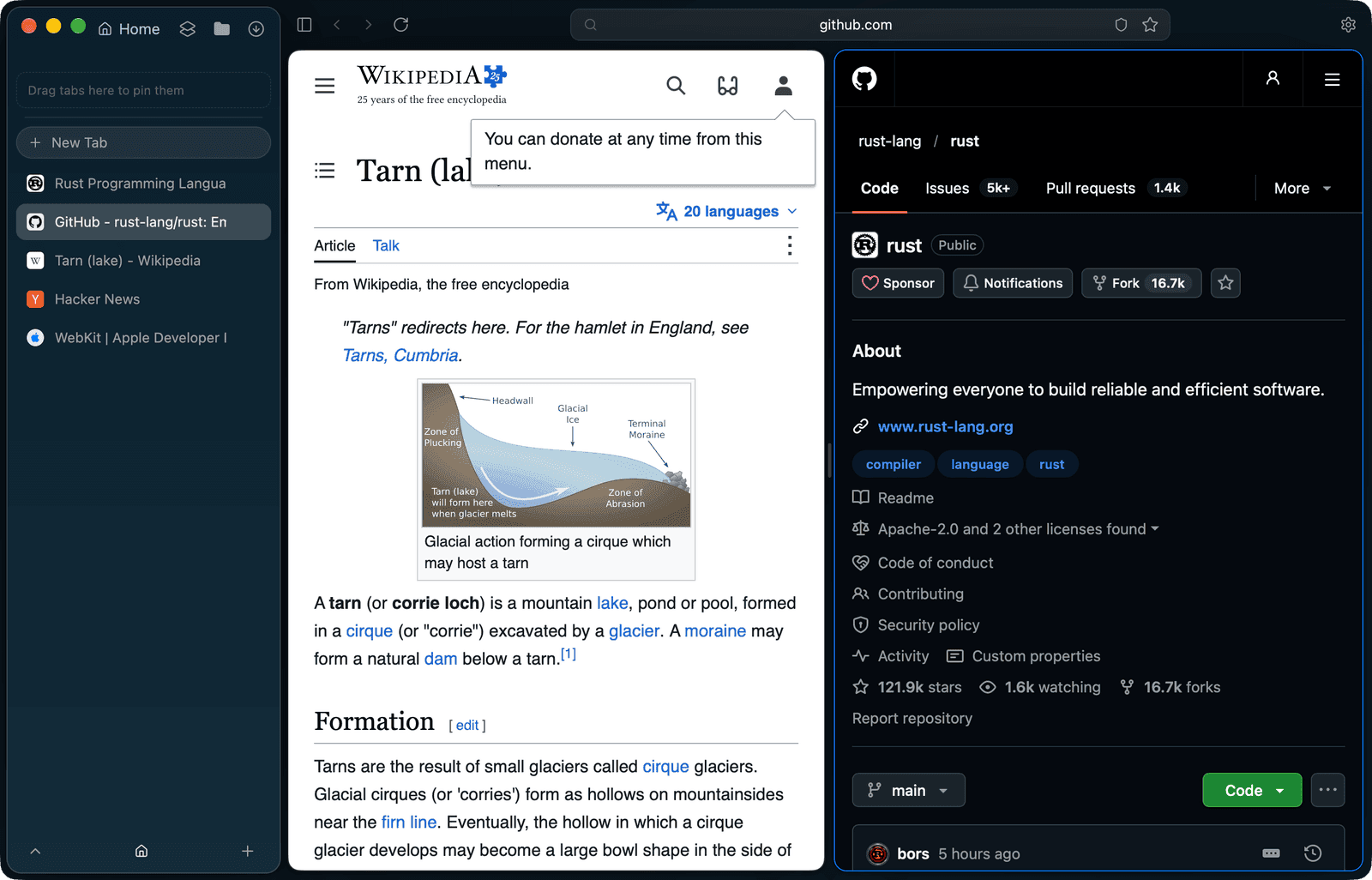
⌃⌘N opens Split View, with the current tab beside the space's last used tab and a divider you can drag. ⇧-click a reference to peek at it over the page without losing your place.
That one page you read an hour ago
Find in Tabs searches the text of the space's awake tabs and shows short snippets around each match. Switch to Tab brings you to a page that is already open instead of loading it twice.
Dozens of tabs open for weeks
Group tabs with ⌥⌘G, give the group a name and a colour, and let background tabs sleep after a time you choose. ⇧⌘T brings back the last 20 closed tabs to the space they came from.
Set Tarn up for research
- Press ⇧⌘S to make a space for each topic, with its own name, colour and icon.
- Press ⌥⌘G to group the tabs that belong to one chapter or question.
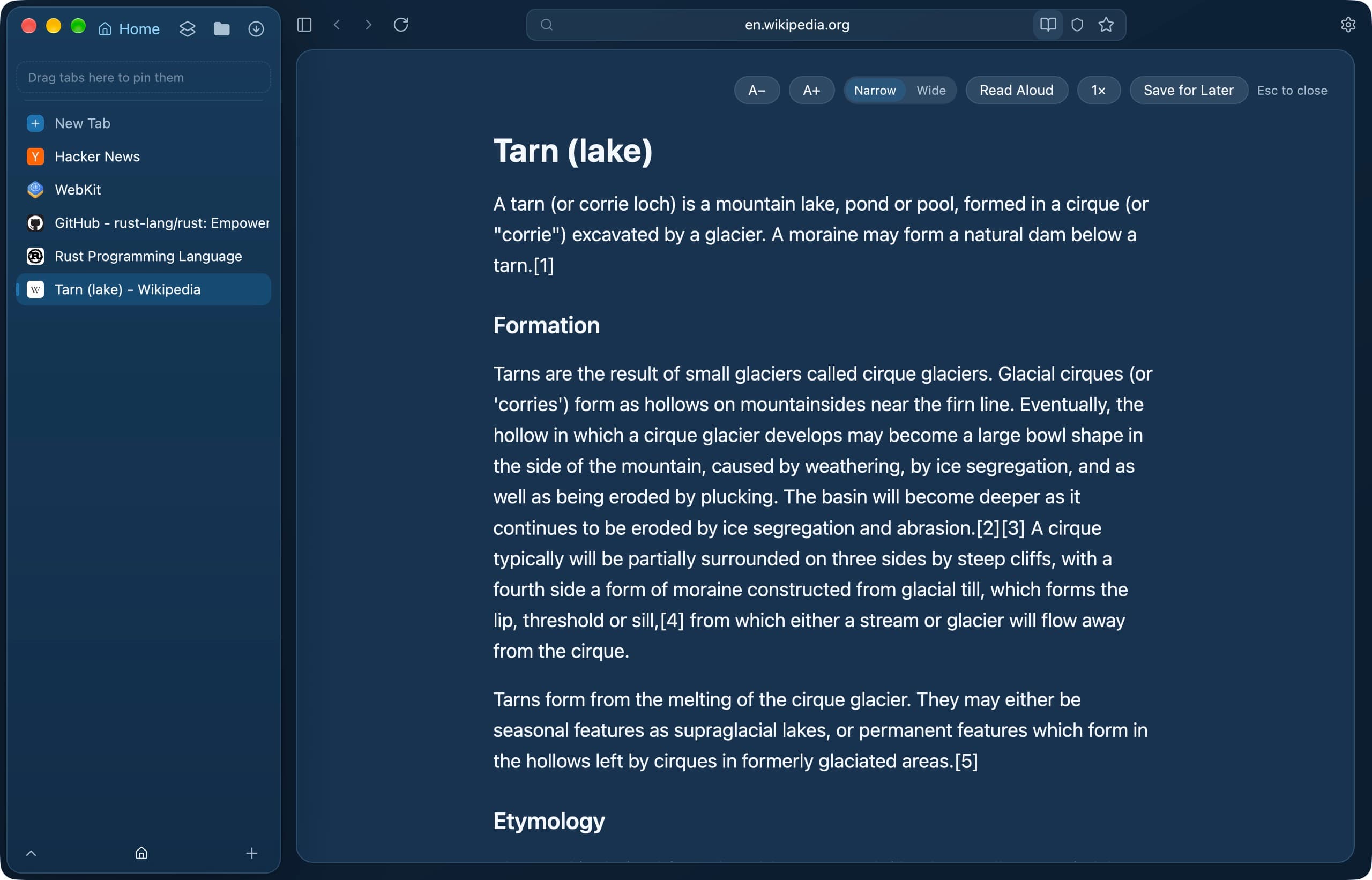
- On an article, press ⇧⌘R to open the reader; A− and A+ change the text size, and Save for Later files the page into a Reading List bookmark folder.
- Press ⌃⌘N to read two sources side by side.
- Before you put a topic away, choose Save Space as Snapshot so its tabs can come back.
Questions
Does Tarn have a reader mode?
Yes. On an article page the address field shows a book button; ⇧⌘R or View › Reader shows the title, headings and paragraphs as plain text, with six text sizes and a narrow or wide column.
Can Tarn read an article aloud?
Yes. Read Aloud in the reader speaks the article with macOS's on-device voices, and nothing is sent anywhere.
Can I save articles to read later?
Save for Later, in the reader and the command bar, files the page into a Reading List bookmark folder, so it is kept, exported and deleted like any bookmark.
Can I search the text of pages I have already read?
If you turn on Settings › Search › Search the text of visited pages, Tarn keeps up to 4 KB of each visited page's text on your Mac. It is off by default.
How do I keep a project's tabs without leaving them open?
Save Space as Snapshot keeps the addresses, titles and groups of a space's tabs until you delete the snapshot.
Where Tarn falls short
- The reader shows text only: no images and no links, and code blocks lose their line breaks. It is not offered at Lockdown.
- Find in Tabs searches the text of awake tabs; a sleeping tab is found by its title or address only.
- A snapshot keeps addresses, titles and groups only, not page state or form input.
- A split holds two tabs and is not saved across a restart.
- Tarn ships on macOS today; Windows, Linux, iOS and Android are in development.
Try Tarn on your Mac
No account to make and nothing sent home. macOS 14 or later; other platforms are in development.